
Call your broker or order desk immediately to see if the order went through or not. Go to your ‘order management’ screen (accessible from your ‘Apps Menu’ button or toolbar) to see if the order showed up, refresh the screen by clicking the ‘refresh’ button to make sure.
Contact your broker directly and request a CQG trader login id and password which they will request from their back office or accounts desk. From your toolbar, select the ‘OE’ button to open up your ‘Account Setup and Connections’ screen. Select ‘New Trader’ and this is where you will enter your CQG Trader id and…
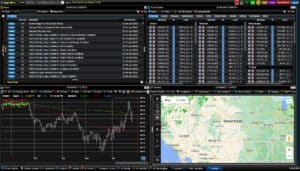
Click on the red ‘organize your desktop windows’ button, located on your toolbar in the upper right of the Market Center. This button will auto arrange the windows evenly on your screen, and also helps uncover windows that have been covered up inadvertently.
From the top toolbar, select the purple ‘RESET’ button and hit “Yes” at the prompt. The browser window will then refresh and reopen the product with the default window settings.
It is possible your local cookies have saved a previous window setting locally – by erasing your local browser cookies, your Market Center could correct this issue.
Click on the red ‘organize your desktop windows’ button, located on your toolbar in the upper right of the Market Center. This button will auto arrange the windows evenly on your screen, and also helps uncover windows that have been covered up inadvertently.
Delete the chart by clicking ‘exit’ or the red X in the upper right corner of your chart frame. Or, click on the red ‘organize your desktop windows’ button, located on your toolbar in the upper right of the Market Center. This button will auto arrange the windows evenly on your screen, and also helps…
We use cookies to ensure that we give you the best experience on our website. If you continue to use this site we will assume that you are accepting with it.